
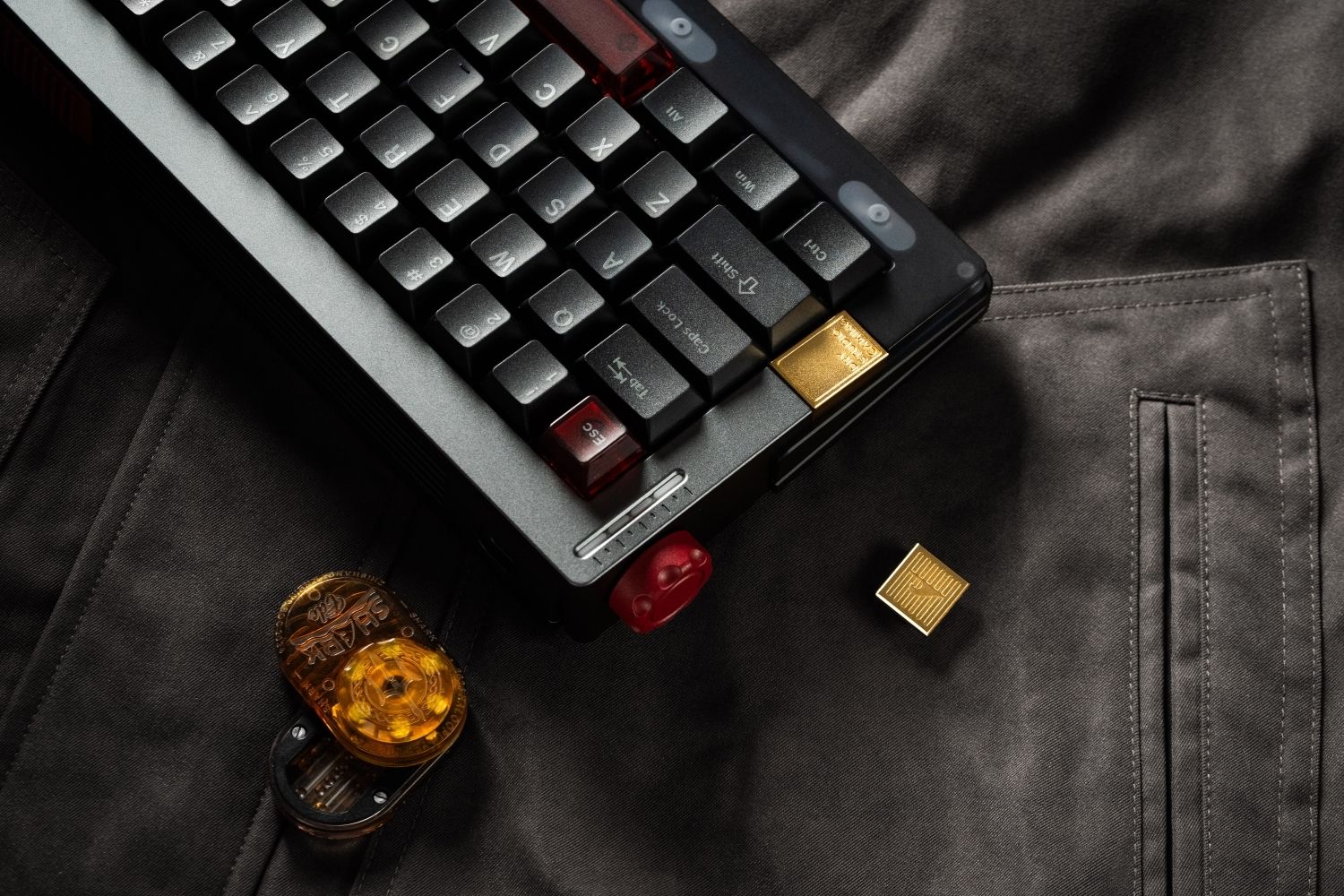
Keyboard lag is the gap between pressing a key and seeing it register — anywhere from a barely noticeable few milliseconds to a delay long enough to drop characters or miss inputs entirely. It can come from the keyboard, the connection, or the system itself. This guide covers the most common causes, how to fix each one, and what actually helps if you're troubleshooting lag for gaming specifically.
What Is Keyboard Lag?
Keyboard lag is the time between a physical keystroke and the system recognising it. The delay isn't always caused by the keyboard itself — software conflicts, outdated drivers, background processes, and wireless interference can all contribute, often in combination. A well-built mechanical keyboard with a quality wireless module and high polling rate avoids most of these issues at the hardware level before software troubleshooting is even needed.
Wireless keyboard lag tends to feel inconsistent rather than constant — intermittent dropouts, repeated characters, or input that occasionally falls behind rather than lagging uniformly. Wired keyboard lag is rarer and more often points to a system-level cause: driver issues, high CPU load, or a USB port problem.

Common Causes of Keyboard Lag
Low Battery or Power Saving Mode
Wireless keyboards depend on consistent power to maintain signal strength and processing speed. As battery levels drop, some keyboards reduce polling frequency to conserve power, which directly increases the time between keystrokes and registration.
Wireless Signal Interference
Wireless keyboards send keystroke data to a receiver, and anything between the two — thick desks, metal surfaces, walls — can weaken that signal. Most wireless keyboards operate on 2.4GHz, the same frequency band used by Wi-Fi routers, Bluetooth devices, and other peripherals. Signal congestion from nearby devices is one of the most common sources of intermittent lag.
Low Polling Rate
Polling rate determines how often the keyboard reports its state to the computer. A standard office keyboard typically runs at 125Hz; gaming keyboards commonly support 1000Hz and up to 8000Hz. The relationship works the same way it does for a gaming mouse's polling rate — higher polling means more frequent updates and less time between an action and the system registering it. A keyboard stuck at a low polling rate will feel measurably slower under fast, repeated input.
Outdated Drivers
Outdated or corrupted drivers can fail to process keystrokes efficiently, and operating system updates occasionally introduce temporary compatibility issues with existing driver versions. This is one of the more common causes of lag that appears suddenly after a system update.
High CPU Usage or Background Apps
Input devices are among the first things affected when a system is under heavy load. Background applications, resource-heavy programs, or malware competing for CPU and memory can all delay how quickly keystrokes get processed.
Worn Hardware or Switch Technology
Physical wear, internal circuit degradation, or aging components can slow response over time — no software fix resolves this. Switch technology itself also plays a role: traditional mechanical switches rely on physical contact and debounce algorithms that filter out accidental double-presses, and higher debounce settings trade some speed for reliability. A quality gaming keyboard with well-tuned debounce settings minimises this tradeoff considerably compared to budget boards.
How to Fix Keyboard Lag: Quick Fixes
Check Battery and Signal Distance
Charge or replace batteries first — this single step resolves a large share of wireless keyboard lag on its own. Then reduce the distance between keyboard and receiver, and make sure neither sits behind metal objects or thick furniture that could weaken the signal.
Switch USB Ports or Use an Extension
A faulty or overloaded USB port can interrupt the data stream. Try a different port, or use a USB extension cable to physically move the receiver closer to the keyboard for a stronger, more direct signal path.
Update or Reinstall Drivers
On Windows, open Device Manager, expand Keyboards, right-click your device, and select Update driver. If that doesn't resolve it, uninstall the device and restart — Windows will reinstall it automatically. On Mac, driver updates come bundled with macOS updates under System Settings → General → Software Update.
Adjust System Typing Settings
On Windows, go to Settings → Time & Language → Typing → Advanced keyboard settings → Change keyboard settings, and set Repeat delay to Short and Repeat rate to Fast. Also check Settings → Accessibility → Keyboard and make sure Filter Keys is off — this feature intentionally slows response to filter accidental presses.
On Mac, open System Settings → Keyboard and move Key Repeat to Fast and Delay Until Repeat to Short. Under Accessibility → Keyboard, confirm Slow Keys is turned off.
Close Background Apps
High CPU or memory usage slows how quickly the system can process input. On Windows, use Task Manager (Ctrl + Shift + Esc) to close unnecessary processes. On Mac, use Activity Monitor to identify and quit resource-heavy applications.
Reducing Keyboard Lag for Competitive Gaming
Wired vs Bluetooth vs 2.4GHz Latency
Connection type has the single biggest impact on latency for gaming.
|
Connection |
Typical Latency |
Best For |
|
Wired |
Under 1ms |
Competitive gaming |
|
2.4GHz Wireless |
Under 1ms (quality models) |
Competitive gaming |
|
Bluetooth |
6–15ms |
Casual use, typing |
Bluetooth's higher latency comes from how the protocol packages and transmits data — fine for everyday typing, but enough to be felt in fast-paced FPS titles where strafing and movement timing matter. Wired and quality 2.4GHz connections both achieve sub-1ms latency, which is why most competitive setups use one or the other rather than Bluetooth.
How Hall Effect Keyboards Reduce Lag
Hall Effect keyboards register keystrokes through magnetic sensing instead of physical metal contact, which removes debounce delay almost entirely — there's no contact bounce to filter out, so the system doesn't need to wait before confirming a press is genuine. This is the main reason Hall Effect keyboards have become popular for competitive play.
Two features build directly on this: adjustable actuation lets you set how far a key needs to travel before it registers, and Rapid Trigger resets the key the instant it starts moving upward rather than waiting for a fixed reset point. Both reduce the practical input delay during rapid, repeated keystrokes — particularly noticeable in counter-strafing and fast directional changes. The Hall Effect keyboard category exists largely because of this latency advantage over traditional mechanical switches.

When the Problem Is the Keyboard Itself
If you've worked through the fixes above and lag persists, test the keyboard on a different device. If the delay shows up consistently across multiple systems, the keyboard itself — not your setup — is the likely cause. Worn switches, internal circuit damage, or a degrading wireless module don't respond to software fixes, and at that point a replacement is the more practical path forward than continued troubleshooting.
Conclusion
Keyboard lag almost always traces back to power, wireless interference, system load, or ageing hardware — and most cases resolve with one of the quick fixes above rather than a full keyboard replacement. For competitive gaming specifically, connection type and switch technology matter more than any software tweak: a wired or quality 2.4GHz connection paired with a Hall Effect keyboard removes the largest sources of latency before troubleshooting even becomes necessary.
FAQ
Why is my 2.4GHz keyboard so laggy?
A laggy 2.4GHz keyboard usually points to interference from nearby Wi-Fi routers or other 2.4GHz devices, a weak signal path, or a low-quality receiver. Moving the receiver closer and clearing obstructions typically resolves it.
How do I fix keyboard repeat delay?
On Windows, go to Settings → Time & Language → Typing → Advanced keyboard settings, and set Repeat delay to Short and Repeat rate to Fast. On Mac, adjust Key Repeat and Delay Until Repeat under System Settings → Keyboard.
How do I reset my keyboard?
Unplug a wired keyboard or remove batteries from a wireless one, wait a few seconds, then reconnect. For persistent issues, uninstall the device in Device Manager (Windows) and let the system reinstall it on restart.
Why is my backspace slow?
A sluggish single key usually means dust or debris under that specific switch, or in rare cases a worn switch. Cleaning with compressed air resolves most cases; if the key still lags afterward, the switch itself may need replacing.
How do I get zero input delay on PC?
True zero delay isn't achievable, but a wired or quality 2.4GHz keyboard with a high polling rate gets close enough that the delay becomes imperceptible — generally under 1ms, well below what a human can perceive.

WRITTEN BY
Angry Miao
Gaming Mouse Specialist • Angry Miao Editorial Team
-
-
-
-
More articlesShare:
Can Any Wireless Mouse Work with a MacBook? Setup Guide
The Best Hot-Swappable Keyboards of 2026(Experimental Test)