
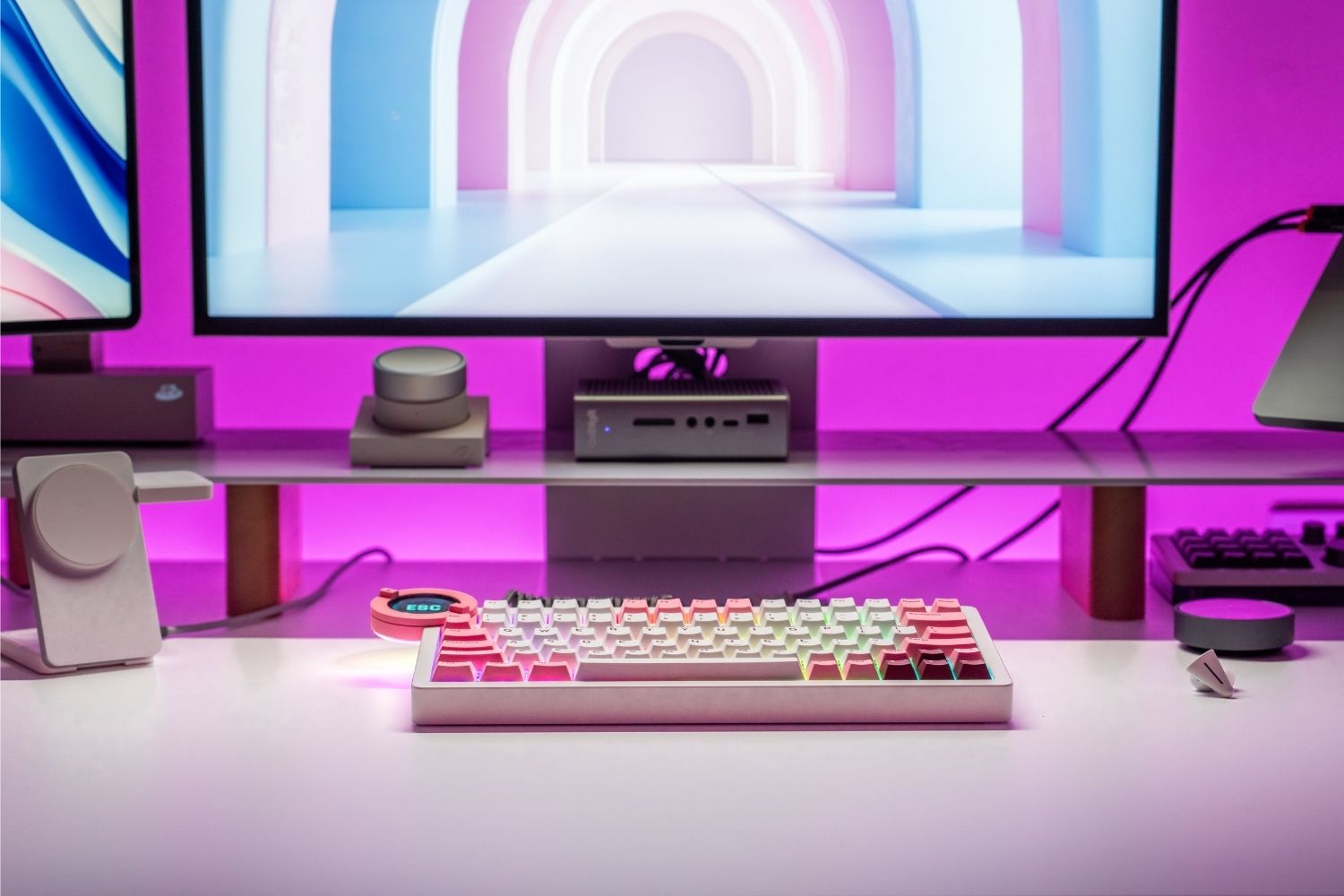
A hotkey is a key or key combination that performs a command faster than clicking through menus. You use hotkeys when you press Ctrl + C to copy, Command + V to paste, Alt + Tab to switch windows, or a media key to adjust volume. Once you learn the shortcuts you use most, your keyboard becomes a faster way to control work, games, and daily computer tasks.
What Is a Hotkey?
A hotkey is a single key or key combination that triggers a specific action on your computer, inside an app, or on a programmable keyboard. On a mechanical keyboard, hotkeys can feel especially direct because repeated commands are tied to clear key feedback, layout, and customization options.

Single-Key Commands
Some hotkeys use one key. F1 may open help, Esc can cancel an action, and media keys can control volume, brightness, or playback. These are simple because the key already has a direct command assigned to it.
Key Combinations
Most hotkeys use a modifier key with another key. Common examples include Ctrl + C on Windows, Command + C on macOS, Ctrl + Z to undo, and Ctrl + S to save. The modifier tells the computer that the key press should run a command instead of typing a character.
System and App Actions
Hotkeys can work at the system level or inside one app. Alt + Tab switches windows, while Ctrl + B only bolds text in apps that support formatting. That is why the same shortcut can behave differently depending on where you use it.
Common Hotkey Examples
The easiest way to understand hotkeys is to look at the ones people use daily. Start with the shortcuts that replace repeated actions like copying, saving, switching tabs, searching, taking screenshots, and controlling media.
|
Task |
Windows Hotkey |
Mac Hotkey |
What It Does |
|
Copy |
Ctrl + C |
Command + C |
Copy selected text, files, or objects. |
|
Paste |
Ctrl + V |
Command + V |
Paste copied content. |
|
Cut |
Ctrl + X |
Command + X |
Move selected content instead of copying it. |
|
Undo |
Ctrl + Z |
Command + Z |
Reverse the last action. |
|
Save |
Ctrl + S |
Command + S |
Save the current file or document. |
|
Select All |
Ctrl + A |
Command + A |
Select all text, files, or page content. |
|
Find |
Ctrl + F |
Command + F |
Search within a page or document. |
|
Switch Apps |
Alt + Tab |
Command + Tab |
Move between open apps or windows. |
|
New Browser Tab |
Ctrl + T |
Command + T |
Open a new tab. |
|
Close Tab |
Ctrl + W |
Command + W |
Close the current tab or window. |
|
Refresh |
Ctrl + R or F5 |
Command + R |
Reload the current page. |
|
Address Bar |
Ctrl + L |
Command + L |
Jump to the browser address bar. |
|
Screenshot |
Win + Shift + S |
Command + Shift + 4 |
Capture part of the screen. |
|
Lock Screen |
Win + L |
Control + Command + Q |
Lock the computer quickly. |
|
Gaming |
Custom keybinds |
Custom keybinds |
Trigger skills, reload, map, or push-to-talk. |
Layout can also affect how natural hotkeys feel. A 75 keyboard keeps the function row and arrows while still saving desk space, making it easier to use shortcuts without giving up everyday controls.

Benefits of Using Hotkeys
Hotkeys save time because they cut out small interruptions. Opening a menu, moving the mouse, clicking a command, and returning to the keyboard may only take a few seconds. But if you repeat that action dozens of times a day, the lost focus adds up.
Fewer Mouse Clicks
Hotkeys reduce the need to move between keyboard and mouse. This is useful for writing, editing, coding, research, spreadsheets, and design work. The less you interrupt your hand position, the faster your workflow can feel.
Better Key Feel
The feel of repeated hotkeys also depends on the board. Stable keyboard switches can make common shortcuts feel more confident because each press has clearer feedback and less hesitation.
Repeated Actions
The more often you repeat an action, the more valuable the hotkey becomes. Copy, paste, undo, save, tab switching, screenshots, and app switching are worth learning first because they appear in almost every workflow.

Hotkeys for Work, Gaming, and Daily Use
Hotkeys show up in almost every computer activity. The best ones remove friction from the task you already perform most often.
Office Work
For documents, email, and spreadsheets, the most useful hotkeys are copy, paste, undo, save, find, print, and switch window. They keep basic editing fast and reduce menu searching.
Creative Software
Design, photo, video, and audio apps rely heavily on shortcuts. Tool switching, timeline control, zooming, undo history, layer actions, and export commands can all become faster when assigned to memorable hotkeys.
Gaming
In games, hotkeys can trigger skills, reload, open maps, switch weapons, activate push-to-talk, or run approved macros. Fast access matters because the command needs to happen without breaking movement or aim.
Browser Use
Browser hotkeys are easy to learn. Ctrl or Command + T opens a new tab, W closes a tab, L jumps to the address bar, and R refreshes the page.
Custom Hotkeys and Keyboard Layouts
Custom hotkeys help when default shortcuts do not match your hands, software, or keyboard layout. You can build them through system settings, app preferences, or keyboard tools. The goal is to make repeated tasks easier.
Operating System Settings
Windows and macOS include system-level shortcut options, accessibility controls, and function-key behavior settings. These are useful for screenshots, input switching, window control, and device functions.
App-Level Shortcuts
Many apps let you change shortcuts inside preferences or settings. This is common in creative software, code editors, productivity tools, and games. If one command feels awkward, changing it can make the app easier to use.
Compact Layouts
Compact boards depend more on hotkeys and layers because they remove dedicated keys to save desk space. The best compact layout should keep your most-used shortcuts easy to reach instead of hiding every command behind a difficult layer.
Keyboard Feel and Hotkey Control
The keyboard itself changes how hotkeys feel. Layout, switch type, actuation, key spacing, and software support all influence whether a hotkey becomes natural or annoying.
Mechanical Feedback
Mechanical keyboards can make hotkeys feel more deliberate because each press has a clearer response. Linear, tactile, and clicky switches all create different feedback, so the best choice depends on whether you prefer smooth speed, a bump, or audible confirmation.
Layer Access
Layers let one key perform different actions when you hold Fn or another modifier. This is powerful on compact keyboards, but the layer needs to be easy to remember. A shortcut hidden too deeply will not save time.
Hall Effect Control
A hall effect keyboard can add adjustable actuation, rapid trigger, and advanced key behavior. These features matter most for gaming and advanced customization, where one key can respond differently based on travel distance, release point, or press behavior.

How to Start Using Hotkeys
The best way to learn hotkeys is to start small. Do not try to memorize a long list in one day. Pick the actions you already repeat, learn the shortcut, and use it until it becomes automatic. Then add more.
Five Basic Shortcuts
Start with copy, paste, undo, save, and find. On Windows, that usually means Ctrl + C, Ctrl + V, Ctrl + Z, Ctrl + S, and Ctrl + F. On Mac, use Command instead of Ctrl for most of these actions.
Task-Based Shortcuts
Add shortcuts based on your routine. If you write, learn formatting and search commands. If you browse heavily, learn tab controls. If you game, focus on ability keys, communication keys, and layout consistency.
Custom Shortcuts
Customize only what you repeat often. A good custom hotkey should feel easier than the original action. If you forget it or trigger it by mistake, simplify the layout instead of adding more layers.
Final Thoughts
A hotkey is a key or key combination that runs a command faster. It can help you copy, paste, save, search, switch windows, control media, play games, and customize your workflow with fewer interruptions. Start with the shortcuts you use every day, then build custom hotkeys around your work, games, and keyboard layout. The best hotkeys are not the most complex. They are the ones your hands remember without effort.
FAQ
What Is a Hotkey on Your Keyboard?
A hotkey is a single key or key combination that runs a command quickly. It can copy text, save a file, switch apps, control media, open tools, or trigger game actions without clicking through menus.
How Do I Create a Hotkey?
You can create a hotkey through your operating system, app settings, game controls, or keyboard software. Choose an action you repeat often, assign a key or key combo, then test it to make sure it feels easy to remember.
How Do I Turn On Hotkeys on My Keyboard?
Some hotkeys work automatically, while others must be enabled in system settings, app preferences, or keyboard software. On laptops, hotkey mode may also be controlled through Fn Lock, BIOS settings, or manufacturer utilities.
Is Ctrl + F a Hotkey?
Yes. Ctrl + F is a common hotkey on Windows and many apps for opening Find or Search. On Mac, the similar command is usually Command + F. It helps you search text inside a page, document, or browser window quickly.
What Are F1 to F12 Keys Used For?
F1 to F12 are function keys. Their actions vary by system and app, but common uses include help, rename, search, refresh, full screen, developer tools, brightness, volume, and media controls, often with the Fn key on laptops.
WRITTEN BY
Angry Miao
Gaming Mouse Specialist • Angry Miao Editorial Team
-
-
-
-
More articlesShare:
Gaming Mouse vs Regular Mouse: What's the Real Difference?
Best Gaming Keyboard Picks for Every Player in 2026