
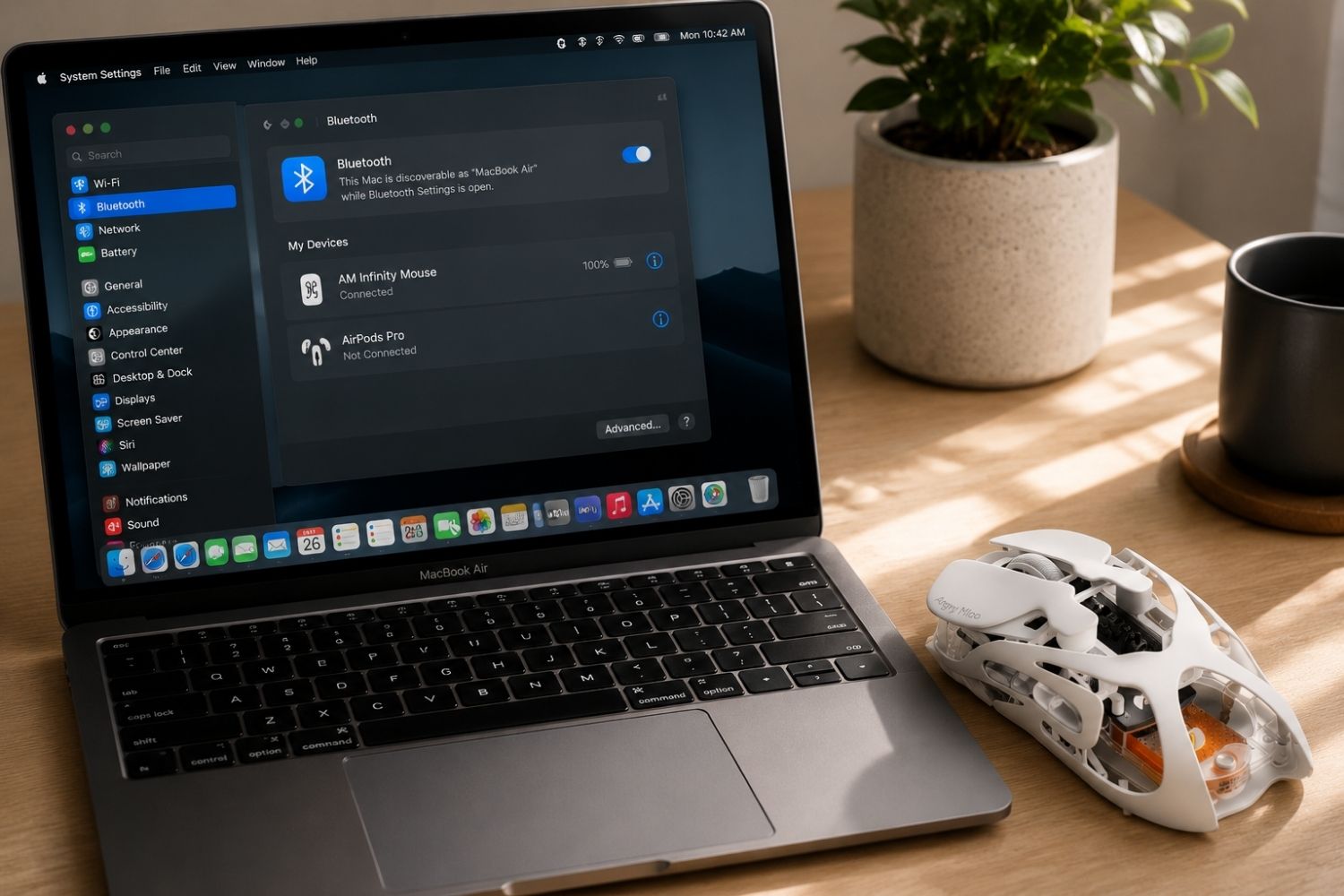
Wireless mice connect to a MacBook in two main ways — Bluetooth or a USB receiver — and most modern mice support at least one of these out of the box. Picking the wrong connection type can mean accepting noticeably higher latency for tasks where it actually matters. This guide covers compatibility basics, how to connect and customize a wireless mouse on macOS, and what to look for if precision matters to you.
Will Any Wireless Mouse Work with a MacBook?
In most cases, yes. The overwhelming majority of wireless mice — regardless of brand — support basic functions like cursor movement, clicking, and scrolling on macOS without any extra setup. Apple's Magic Mouse isn't required; any standard Bluetooth or 2.4GHz mouse will track and click the moment it's paired or plugged in.
Where compatibility gets more specific is in advanced features. Programmable side buttons, custom DPI settings, onboard profiles, and RGB lighting often require manufacturer software. Some brands offer this as a native macOS app; others only support Windows, leaving Mac users with basic functionality and no way to customize the extras.
Before buying, check three things: official macOS support listed by the manufacturer, whether drivers or a web-based configuration tool exists for Mac, and whether the mouse works plug-and-play without anything extra installed.
A quality wireless gaming mouse built with cross-platform support in mind will list macOS compatibility clearly and typically offers a browser-based driver rather than a Windows-only app — worth checking before you buy if you want full access to DPI and button customization on a Mac.

Bluetooth vs USB Receiver: Which Should You Use?
MacBooks support both connection types, but they behave differently.
Bluetooth
Built into every MacBook, so no dongle or adapter is needed. This makes it the cleanest option for portability — useful for general browsing, writing, and everyday tasks. The tradeoff is latency: Bluetooth typically runs at 8–20ms response time, which is fine for office work but noticeable in fast-paced games or precision tasks.
USB Receiver
Uses a 2.4GHz proprietary connection through a small dongle. Newer MacBooks without USB-A ports require a USB-C adapter to use one. The benefit is significantly lower latency — typically 1–2ms — and a more stable connection that doesn't compete with other Bluetooth devices nearby. For gaming or detailed design work where responsiveness matters, a 2.4GHz receiver is the more reliable choice.
The difference between these two connection types is covered in more depth in the wireless vs Bluetooth mouse comparison, including why competitive use cases consistently favor a dedicated receiver over Bluetooth.
If portability and a clutter-free setup matter most, Bluetooth is the practical choice. If low latency and tracking accuracy matter more, a 2.4GHz mouse is worth the small inconvenience of carrying a dongle.
How to Connect a Wireless Mouse to Your MacBook
Pairing via Bluetooth
-
Turn on the mouse and switch it into pairing mode
-
Open System Settings on your MacBook
-
Go to Bluetooth
-
Wait for the mouse to appear in the device list
-
Click Connect
If pairing fails, confirm the mouse has battery charge and isn't already paired to another device — most Bluetooth mice can only maintain an active connection with one device at a time.

Connecting via USB Receiver
-
Plug the receiver into your MacBook, using a USB-C adapter if needed
-
Turn on the mouse
-
Wait for automatic detection — no additional steps required
USB receiver connections are plug-and-play on nearly every modern mouse, making this the more reliable option in environments with heavy Bluetooth traffic from other devices.
How to Customize Mouse Settings on macOS
Once connected, basic settings are available directly through System Settings → Mouse. Tracking speed controls how fast the cursor moves across the screen — higher speeds suit large or multiple monitors, lower speeds suit detailed work. Scroll direction and double-click speed can also be adjusted here.
For mice with programmable buttons, DPI switching, or onboard profiles, macOS-native customization typically requires manufacturer software. Where available, this software lets you remap buttons to actions like switching desktops, launching specific apps, or adjusting DPI on the fly — useful for both productivity workflows and gaming setups where quick sensitivity changes matter mid-session.
Troubleshooting Common Connection Issues
Mouse not detected: Check battery level, confirm pairing mode is active, and try restarting Bluetooth or reseating the USB receiver.
Lag or connection drops: Usually caused by interference from other wireless devices or low battery. Switching to a 2.4GHz receiver typically resolves persistent Bluetooth interference issues.
Buttons not working: Extra buttons beyond basic clicks often require manufacturer software. Confirm the brand offers a macOS-compatible configuration tool before assuming the mouse is faulty.
Inconsistent tracking on certain surfaces: Glass desks, glossy mousepads, and highly reflective surfaces can confuse optical sensors. A textured mousepad usually resolves this regardless of mouse brand or connection type.
Can a Bluetooth Mouse and Keyboard Connect to a Mac at the Same Time?
Yes. MacBooks support multiple simultaneous Bluetooth connections, so a Bluetooth mouse and a Bluetooth keyboard can both stay paired and active at once without conflict. This is the standard setup for most desk configurations — there's no limit that forces you to choose between the two.
The same applies if you're mixing connection types: a 2.4GHz mouse on its USB receiver and a Bluetooth keyboard work together with no interference, since they operate on separate channels. The only practical limit is the total number of Bluetooth devices your Mac can track at once, which is high enough that most users never hit it even with a mouse, keyboard, headphones, and other accessories all connected.
Which Wireless Mouse Should You Choose for a MacBook?
For general use — browsing, writing, everyday tasks — a standard Bluetooth mouse covers everything needed without any extra setup. For gaming, design work, or anything where tracking precision and low latency matter, a 2.4GHz mouse with a dedicated receiver is the better fit.
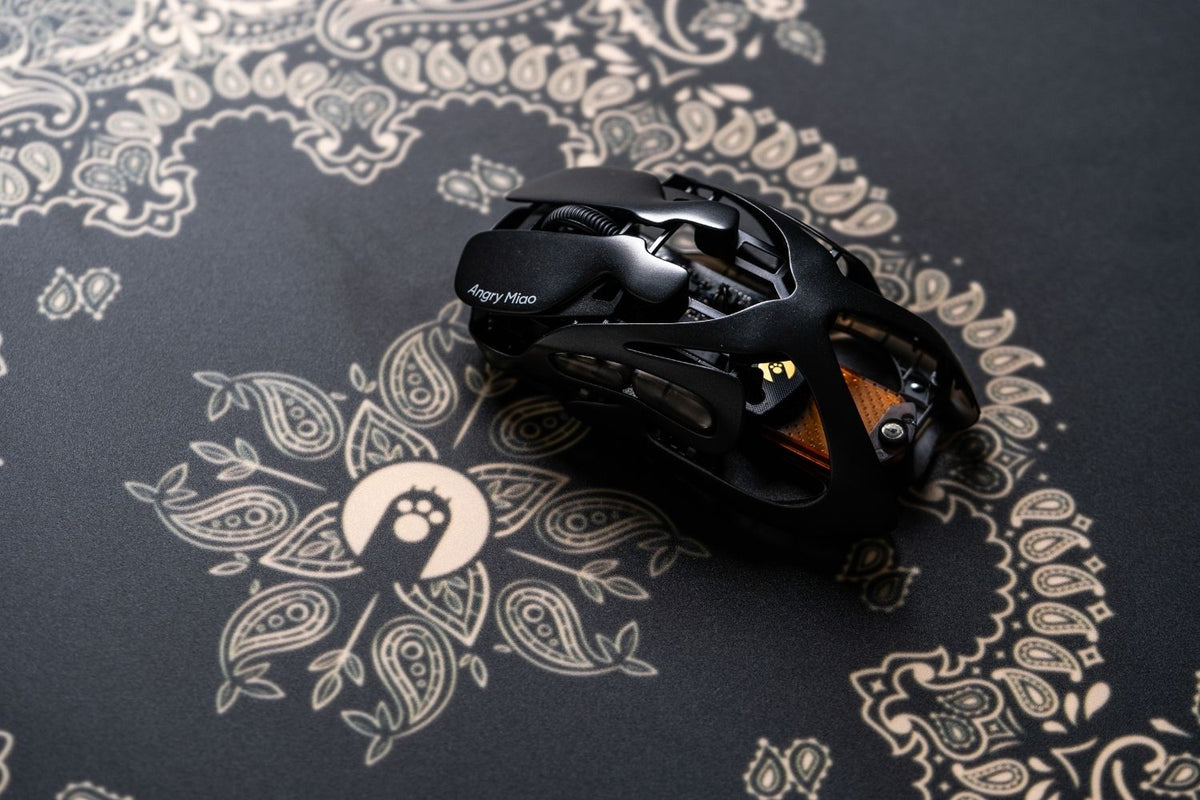
The AM Infinity wireless gaming mouse is a strong option for MacBook users who want that precision without giving up portability — its PAW3950 sensor and 2.4GHz connection deliver consistent low-latency tracking, and at 47g it's light enough for extended sessions without wrist fatigue. Hot-swappable batteries also mean no mid-session charging interruptions, which matters for anyone doing extended creative or competitive work on a laptop setup.

Conclusion
Almost any wireless mouse will work with a MacBook at a basic level — the real decision is which connection type and feature set actually match how you use it. Bluetooth wins on simplicity and portability; a 2.4GHz receiver wins on speed and consistency. Check macOS software support before buying if customization matters, and the rest of the setup takes only a few seconds.
FAQ
Will my Windows wireless mouse work with a MacBook?
Yes, for basic functions. Cursor movement and clicking work without extra setup. Advanced features like programmable buttons may need macOS-compatible software from the manufacturer.
Why is my wireless mouse lagging on my MacBook?
Usually, interference from other wireless devices or a low battery. A 2.4GHz receiver is generally more stable than Bluetooth in busy wireless environments.
Can I use a gaming mouse with a MacBook?
Yes. Most gaming mice work on macOS for basic tracking and clicking. Full customization of DPI, buttons, and lighting depends on whether the manufacturer offers macOS-compatible software.
Do I need a USB-C adapter for a USB receiver mouse?
Most newer MacBooks have only USB-C ports, so a USB-C adapter is needed for receivers with a standard USB-A connector.
Why aren't my mouse's extra buttons working on my Mac?
Extra buttons typically require manufacturer driver software to function beyond default actions. Check whether the brand provides a macOS-compatible app or web-based configuration tool.
WRITTEN BY
Angry Miao
Gaming Mouse Specialist • Angry Miao Editorial Team
-
-
-
-
More articlesShare:
Keycap Profiles and Materials Explained: How to Choose the Right Set
Why Is My Keyboard Lagging? Why and How to Fix the Delay