
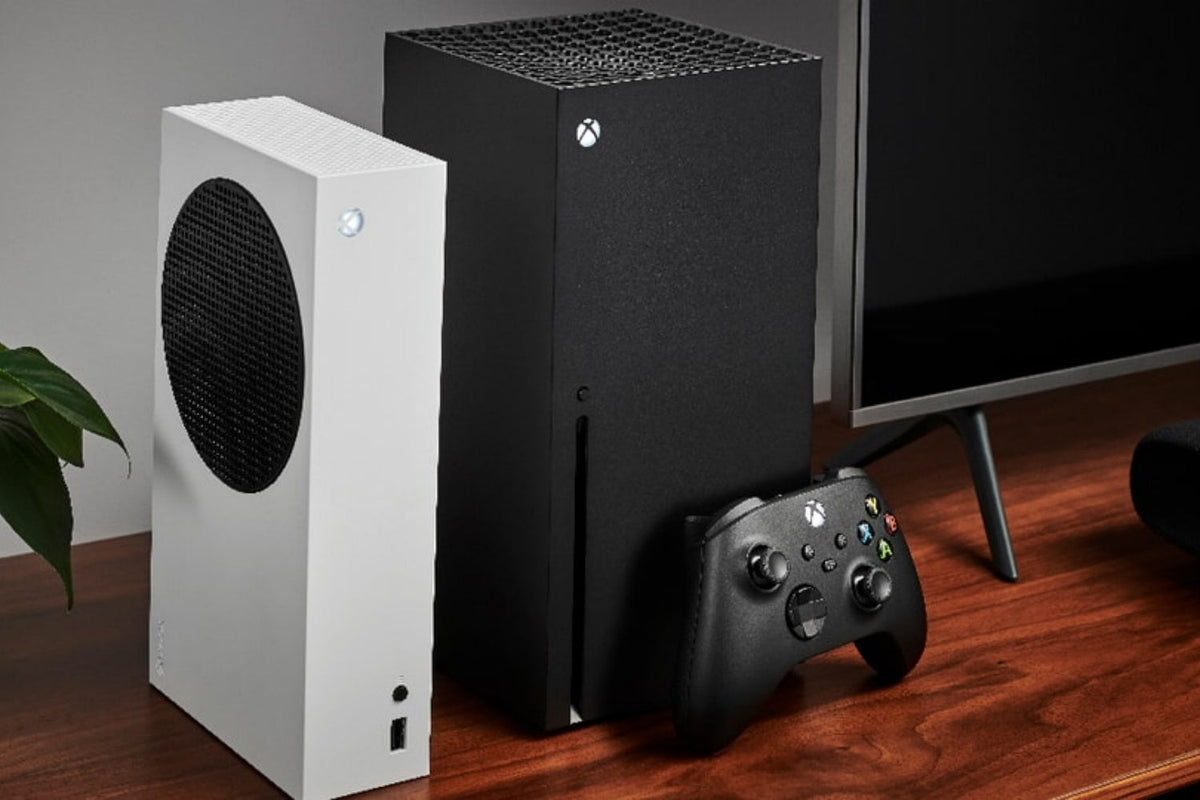
To connect a keyboard and mouse to an Xbox, plug wired USB devices into the console or connect the USB receivers for compatible 2.4 GHz wireless peripherals. Standard Bluetooth keyboards and mice do not pair directly with Xbox consoles. A keyboard can also help with text entry and parts of the interface, while mouse gameplay depends on support from the game or app.
Can You Use a Keyboard and Mouse on Xbox?
Yes. Xbox Series X, Xbox Series S, and Xbox One consoles can use many USB keyboards and mice. This makes a gaming keyboard and mouse useful for players who prefer PC-style controls, faster text entry, or more dedicated keys in supported games.
The main limitation is game support. Connecting the hardware does not make every Xbox title accept keyboard and mouse input. Some games support both for gameplay, some use a keyboard only for chat or menus, and others remain controller-only. Check the game developer’s current input-support information if you are setting up peripherals for one specific title.
Keyboard and mouse behavior also differs outside games. A keyboard can navigate parts of the Xbox interface and enter text, but the mouse does not behave like a full desktop pointer throughout the dashboard. Test mouse input inside a compatible game or app rather than judging it from the home screen alone.

How Do You Connect a Keyboard and Mouse to Xbox?
The setup depends mainly on whether your peripherals use wired USB or a 2.4 GHz wireless receiver. Wired USB is the simplest option. Wireless devices can also work when they communicate through a USB dongle, while Bluetooth-only models are not a native pairing option.
|
Connection type |
How to connect |
Main limitation |
|
Wired USB |
Plug the keyboard and mouse into available USB ports |
May need an adapter if the peripheral terminates only in USB-C |
|
2.4 GHz wireless |
Plug in the device’s USB receiver and switch the peripheral to 2.4 GHz mode |
Compatibility can vary by device |
|
Bluetooth only |
No standard direct pairing method |
Xbox does not provide normal third-party keyboard/mouse Bluetooth pairing |
Connect a Wired Keyboard and Mouse
- Turn on the Xbox and sign in normally.
- Plug the keyboard into an available USB port on the console.
- Plug the mouse into another USB port.
- Test the keyboard in a text field or by navigating the interface.
- Open a game or app that supports mouse input and test movement and clicks there.
Xbox Series X|S accessory ports are USB-A. If a keyboard or mouse ends only in USB-C, use a suitable USB-A connection or adapter. A USB hub can help when ports are occupied, but direct connection is better when you are troubleshooting a device that is not being detected.

Connect a Wireless Keyboard and Mouse
- Charge the keyboard and mouse or install fresh batteries.
- Plug the keyboard’s 2.4 GHz USB receiver into the Xbox.
- Connect the mouse receiver, or use a shared receiver only if the manufacturer specifically supports one.
- Switch the peripherals to 2.4 GHz mode rather than Bluetooth.
- Wait a few seconds, then test the keyboard on the interface and the mouse in a supported game.
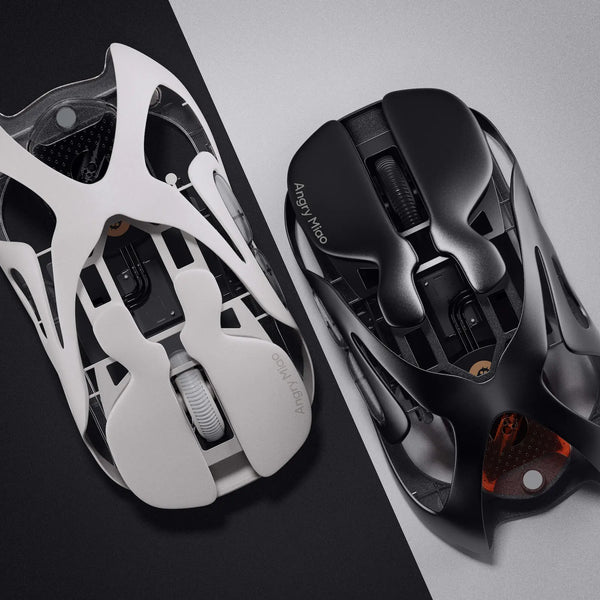
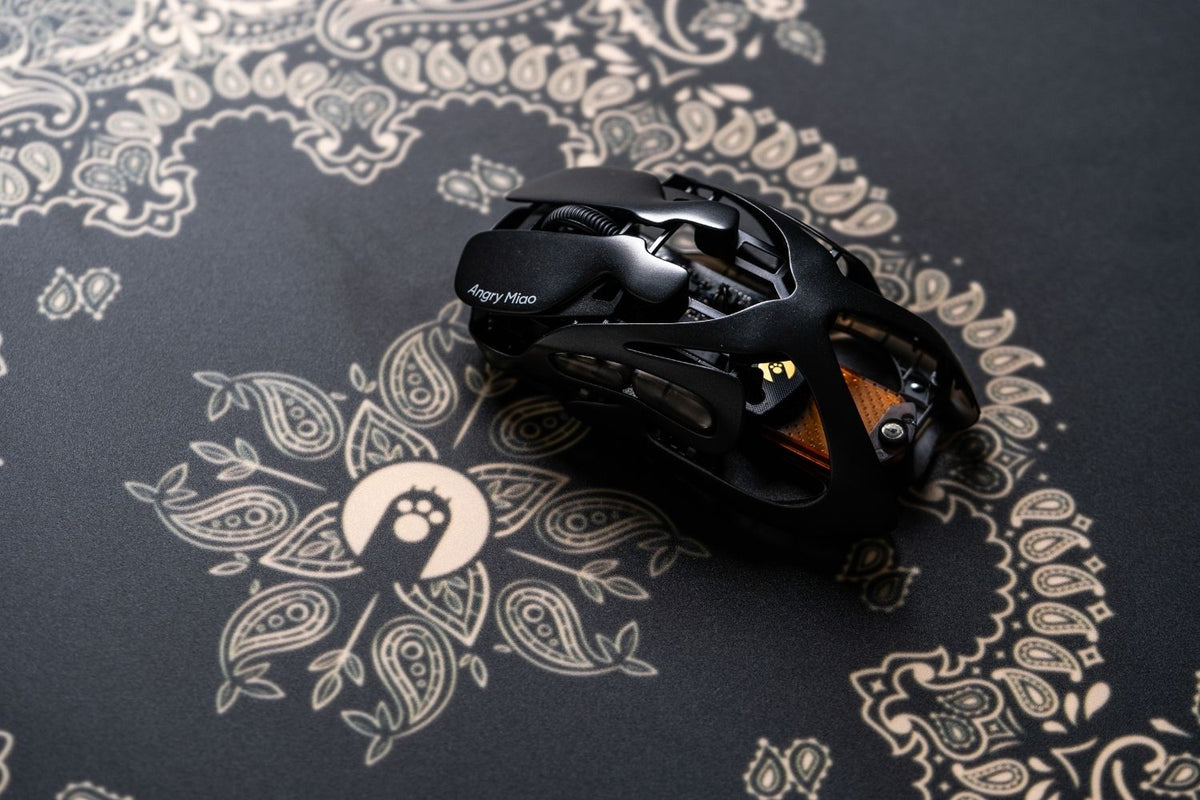
Tri-mode peripherals may offer wired, Bluetooth, and 2.4 GHz connections, but those modes are not interchangeable on Xbox. For example, the AM INFINITY MOUSE offers multiple connection modes; for Xbox use, a wired USB or compatible USB-receiver connection is the relevant path rather than direct Bluetooth pairing. Compatibility should still be checked for the exact device and game.
Can You Connect a Bluetooth Keyboard or Mouse to Xbox?
Not through the normal Bluetooth pairing process used on a PC, phone, or tablet. Xbox consoles do not provide standard native Bluetooth pairing for third-party keyboards and mice. If a wireless peripheral supports both Bluetooth and 2.4 GHz, use its 2.4 GHz mode with the USB receiver instead.
A Bluetooth-only device should not be purchased for Xbox on the assumption that it will pair directly. Third-party adapters can have their own compatibility rules, so verify the exact adapter and peripheral rather than treating an adapter as a universal solution.
How Do You Test and Configure a Keyboard and Mouse on Xbox?
Test the Keyboard First
Use the arrow keys to move through supported interface elements, Enter to select, and a search or message field to test typing. If the keyboard works here but not inside a game, check whether that game supports keyboard input for gameplay.
Test the Mouse in a Supported Game or App
Because the mouse is not a full dashboard pointer, launch a title or app that supports mouse input. Check movement, primary and secondary clicks, the scroll wheel, and any extra buttons the software recognizes.
Adjust Mouse and Onboard Settings
Xbox provides basic mouse options under Settings > Devices & connections > Mouse, while supported games can add their own sensitivity, aiming, acceleration, and key-binding controls. Those in-game settings usually matter more for actual play.
Some peripherals can also save DPI, button assignments, lighting, or other hardware profiles to onboard memory. Those settings may be prepared on a computer first, but PC-only configuration software does not run on Xbox. Do not copy a manufacturer-specific polling-rate recommendation to every device; use the guidance for your exact keyboard or mouse.
Which Xbox Games Support Keyboard and Mouse?
Keyboard and mouse support is decided game by game. A console may recognize both devices while a particular title still accepts only a controller. Support can also be partial: a keyboard might work for chat or menus without being available for full gameplay.
Before buying peripherals for one game, check the developer’s current support page or the game’s input settings. Also check whether online modes apply input-based matchmaking or other rules. This is more reliable than relying on an old compatibility list, because game support can change through updates.

Why Is Your Keyboard or Mouse Not Working on Xbox?
First separate a hardware connection problem from a game-support problem. If the keyboard works on the Xbox interface but not in a game, the game or mode may not support it. If neither device is detected, work through the connection itself.
- Reconnect the USB cable or receiver and try another console USB port.
- Charge wireless devices and confirm they are set to 2.4 GHz rather than Bluetooth.
- Remove a USB hub temporarily and connect the peripheral directly to the Xbox.
- Restart the console after reconnecting the devices.
- Inspect the cable, USB plug, and console port for visible damage or debris.
- Update the peripheral firmware on a supported computer if the manufacturer recommends it.
- Restore a simple onboard profile if unusual macros or button mappings were previously saved.
- Confirm that the exact game and game mode support keyboard and mouse input.
If the mouse works on a computer but feels unsuitable for the way you play, connection is only part of the decision. Differences between a gaming mouse vs. a regular mouse matter only when the game can actually use the extra controls or performance features.
FAQs
Can you connect a keyboard and mouse to Xbox Series X and Series S?
Yes. Use wired USB devices or compatible wireless peripherals with USB receivers. Whether both devices work in gameplay still depends on support from the game.
Can you use any keyboard and mouse on Xbox?
Many standard USB devices work, but compatibility is not universal. Bluetooth-only models do not pair natively, and a game must support keyboard and mouse input for gameplay.
Can you connect a wireless keyboard to Xbox without a USB receiver?
Not if it relies only on standard Bluetooth. For wireless use, choose a compatible keyboard with a 2.4 GHz USB receiver or connect it by USB if the model supports wired mode.
Why does my keyboard work on Xbox but my mouse does not?
A keyboard can work in parts of the Xbox interface, while the mouse is not a full dashboard pointer. Test the mouse inside a game or app that explicitly supports mouse input.
Do you need an adapter for a keyboard and mouse on Xbox?
Usually not for USB-A devices or 2.4 GHz receivers. An adapter or hub may be needed for connector or port availability, but it does not add native Bluetooth pairing support.
Conclusion
Connecting a keyboard and mouse to Xbox is usually straightforward with wired USB or compatible 2.4 GHz receivers. Test the keyboard on the interface, test the mouse in a supported game, and check game compatibility before troubleshooting hardware. Bluetooth-only peripherals do not pair natively.
WRITTEN BY
Angry Miao
Gaming Mouse Specialist • Angry Miao Editorial Team
-
-
-
-
More articlesShare:
How to Connect a Keyboard and Mouse to PS5: 3 Easy Ways