
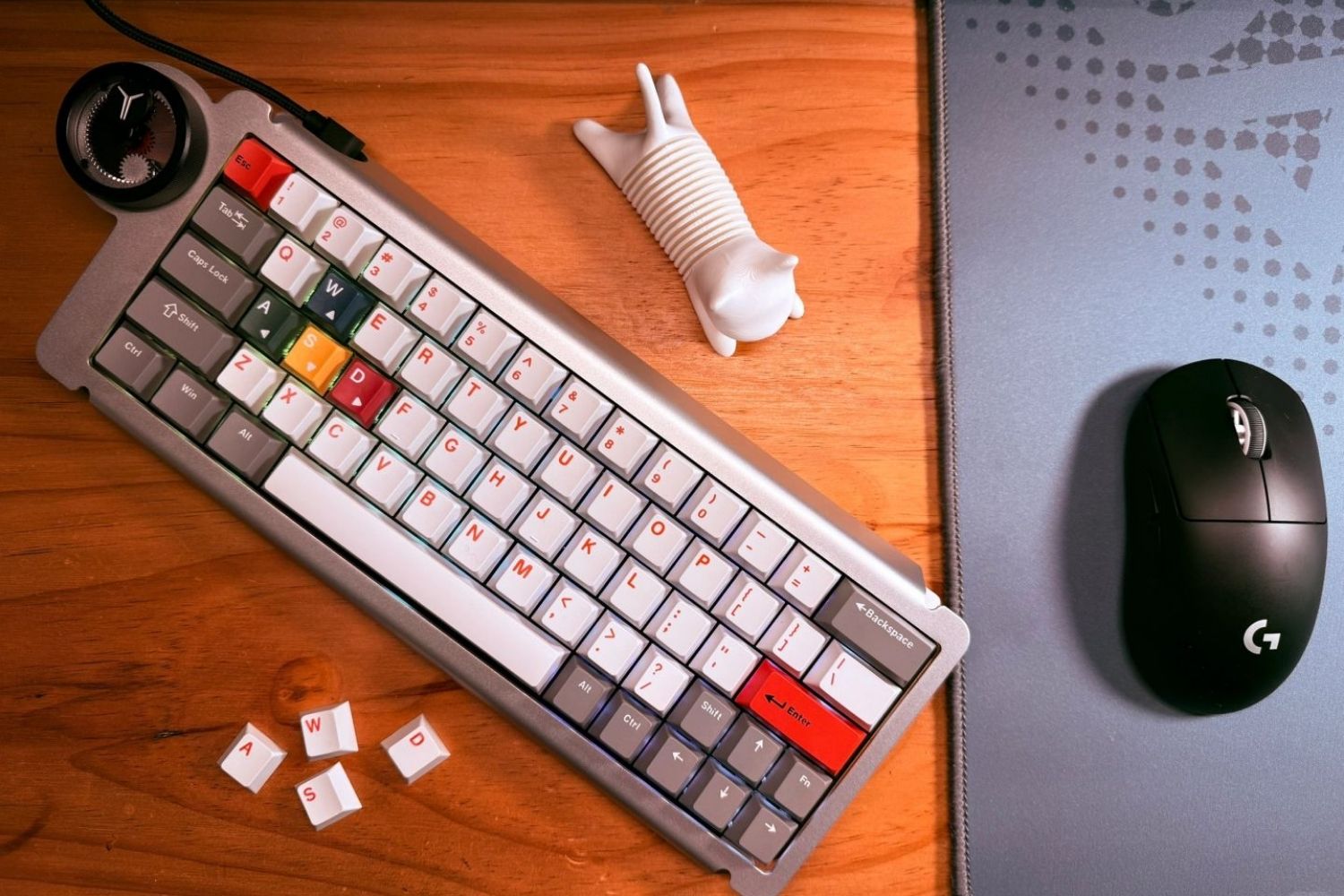
If your computer keyboard is not working, restart the computer, reconnect the keyboard, check its battery, and try another port or device. If that fails, inspect accessibility settings, drivers, wireless pairing, and physical damage. The steps below move from quick checks to more involved fixes.
Why Is My Computer Keyboard Not Working?
Common Software and Hardware Causes
A keyboard can stop responding because the computer or one application has frozen, the cable or wireless connection has failed, the battery is empty, or a setting is ignoring keystrokes. Driver problems, an incorrect keyboard layout, dirt, liquid, worn switches, and damaged ports are also possible.
The pattern matters. If every key fails, suspect the connection, power, system, or keyboard electronics. One affected application suggests an app problem, while one dead key suggests debris or wear. A reliable gaming keyboard can still appear defective when it is in the wrong mode, paired elsewhere, or affected by a setting.
What Should You Check First When a Computer Keyboard Is Not Working?
Quick Isolation Checks
Start by finding out whether the keyboard, the computer, or one program is responsible.
-
Click directly inside a text field and type again.
-
Try the keyboard in another application.
-
Restart the affected application, then restart the computer.
-
Use the mouse to open an on-screen keyboard while troubleshooting.
-
Test another keyboard on the same computer if one is available.
-
Test the problem keyboard on another computer or tablet.
Temporary On-Screen Keyboard
On Windows 11, open Settings > Accessibility > Keyboard and turn on On-Screen Keyboard. On macOS, open System Settings > Accessibility > Keyboard and enable Accessibility Keyboard. This lets you enter commands while troubleshooting.

How Do You Fix Computer Keyboard Connection Problems?
Wired USB Port and Cable Checks
Unplug the keyboard, wait several seconds, and reconnect it firmly. Try another USB port, preferably one directly on the computer instead of a hub, dock, monitor, or adapter. If the cable is detachable, test a compatible replacement cable.
If the keyboard works in one port but not another, suspect the port or hub. If it works on another computer, suspect a setting or driver on the original machine. Failure everywhere with multiple cables points to the keyboard.
Built-In Laptop Keyboard Test
For a laptop, test an external keyboard. If it works, the built-in keyboard or laptop hardware may need service. Do not open a laptop unless qualified.
Wireless Battery and Connection Mode
Confirm that the keyboard is switched on and set to the intended connection mode. Recharge it or install fresh batteries even if an indicator still flashes. Low power can cause missed input or repeated disconnections before the keyboard shuts down completely.
2.4GHz Receiver Checks
For 2.4GHz, reinsert the receiver, try another port, and avoid congested hubs or interference. Use the original receiver unless replacement pairing is supported.
Bluetooth Re-Pairing
For Bluetooth, toggle Bluetooth, remove the saved keyboard, and pair it again. Check whether it connected to another device; the wrong channel can make a working keyboard seem unresponsive.
Tri-Mode Replacement Option
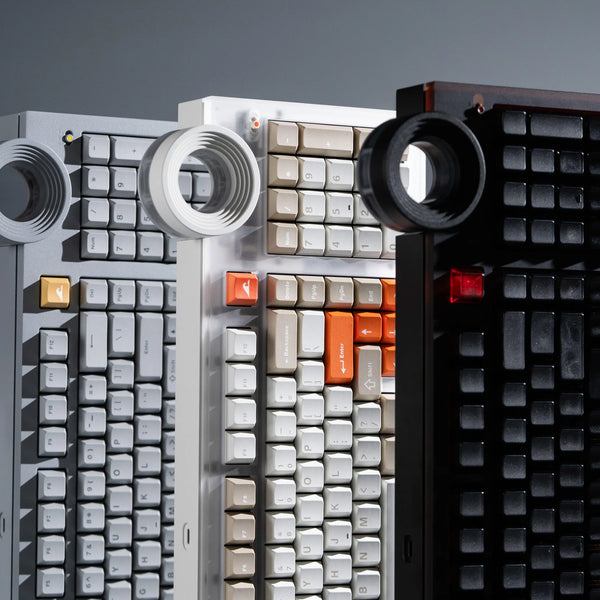
If you need a replacement that can switch between connection types, the ATM 98 supports wired, Bluetooth, and 2.4GHz modes, making it easier to match different computers and setups. It combines a 98-key layout with silent linear switches, two 3000mAh batteries, Windows and Mac compatibility, and a stable 6063 aluminum body. Its low 18.8mm front height and gasket mount are designed for comfortable daily typing, while 2.4GHz also supports responsive gaming.
Which Settings or Drivers Can Make a Computer Keyboard Seem Broken?
Accessibility Settings
Accessibility and input settings can change how keys respond. On Windows, go to Settings > Accessibility > Keyboard. Turn off Filter Keys if short presses are being ignored, and review Sticky Keys if modifier shortcuts behave unexpectedly.
On macOS, go to System Settings > Accessibility > Keyboard and check Slow Keys and Sticky Keys. Slow Keys adds a delay before a press is accepted. Also open Accessibility > Pointer Control and make sure Mouse Keys is off if number-pad keys are moving the pointer instead of typing.
Language, Layout, and Lock Modes
If keys produce the wrong symbols, confirm the input language and layout. Windows users can check Settings > Time & language > Language & region. Mac users can check System Settings > Keyboard > Text Input. Num Lock, Fn Lock, a gaming mode, or a remapped layer can also change what individual keys do.
Windows Driver Reset
Driver problems are more likely after a system update, a new keyboard installation, or when special functions fail but basic typing works.
On Windows:
1. Right-click Start and open Device Manager.
2. Expand Keyboards and Human Interface Devices.
3. Right-click the relevant device and choose Update driver.
4. If the problem began after an update, open Properties > Driver and consider Roll Back Driver when available.
5. If necessary, uninstall the device and restart Windows so it can detect the keyboard again.

Manufacturer Software and Firmware
Use only the manufacturer's official configuration or firmware tool. Keep the keyboard connected as instructed and never interrupt a firmware update.
On macOS, install current system updates and update manufacturer software used for remapping, lighting, or profiles.
Why Are Only Some Computer Keyboard Keys Not Working or Failing?
Debris and Safe Cleaning
One dead or inconsistent key usually points to debris, a damaged keycap or switch, liquid exposure, or a remapping problem. Power off and disconnect the keyboard before cleaning it. Turn it upside down, shake it gently, and use a soft brush or short bursts of compressed air held at a safe distance.
Switch Testing and Liquid Damage
Do not pour cleaner into the keyboard. Avoid removing laptop keycaps unless the manufacturer provides instructions, because their scissor mechanisms break easily. Hot-swappable custom keyboards make an isolated key fault easier to diagnose: install a known-good compatible switch to determine whether the original switch or its socket is responsible.
If liquid was spilled, disconnect power immediately. Do not keep pressing keys to test them, and do not use heat to force drying. A large spill, corrosion, a burning smell, or a swollen laptop battery requires professional service.
Cross-Device Testing
Test the keyboard before the operating system loads, such as in the BIOS or startup-options screen, if you know how to enter it safely. Failure there makes a Windows or macOS setting less likely. You can also cross-test with another keyboard and another computer.
Hardware Failure Signs
Hardware failure is likely when the keyboard fails on several devices, has visible damage, disconnects when the cable moves, or has dead keys after a spill. Suspect the computer's USB hardware if several known-good devices fail there.
What If the Computer Keyboard Is Locked Rather Than Broken?
Lock Keys, Profiles, and Gaming Mode
Some laptops and external keyboards include a lock shortcut, gaming mode, or function-layer command that disables certain keys. Check the manual for a keyboard-lock symbol and verify Num Lock, Fn Lock, and the active profile. Avoid trying random Fn combinations because they may change lighting, wireless channels, or layouts.
Mac Keyboard Lock Checks
Mac users who can move the pointer but cannot type should also check Slow Keys, Mouse Keys, and the active input source. The steps for locking and unlocking a Mac keyboard explain the difference between preventing accidental input and fixing a keyboard that only appears locked.
When Should You Replace a Computer Keyboard That Is Not Working?
Replacement Warning Signs
Replacement makes sense when the keyboard fails on multiple devices, repair costs approach the price of a new model, liquid corrosion continues spreading, or essential keys remain unreliable after safe cleaning and switch testing. Before buying, decide which layout, connection modes, noise level, and operating-system support you actually need rather than choosing only by appearance.
Computer Keyboard Not Working FAQ
Why Did My Computer Keyboard Suddenly Stop Working?
A frozen app, loose cable, depleted battery, lost wireless pairing, changed accessibility setting, or failed driver can stop input suddenly. Restart first, then test another port, application, and device to separate a temporary software problem from hardware failure.
Why Is My Keyboard Connected but Not Typing?
It may be paired on the wrong channel, focused on another device, affected by Filter Keys or Slow Keys, or using the wrong profile or layout. Confirm the active connection, click inside a text field, and test the keyboard with another application.
Can I Fix a Keyboard After a Liquid Spill?
Disconnect it immediately and stop testing it. Do not apply heat or pour cleaner inside. Minor exposure may be serviceable after proper drying and inspection, but corrosion, a large spill, burning odor, or laptop involvement should be handled by a qualified technician.
Why Does My Keyboard Type the Wrong Characters?
The operating system may be using another language or layout, or Num Lock, Fn Lock, a custom layer, or remapping software may be active. Check the input-source indicator and keyboard configuration before reinstalling drivers or replacing hardware.
How Do I Know If I Need a New Keyboard?
Replace it when it fails across multiple devices and ports, has unsafe physical damage, or remains unreliable after connection, settings, driver, and cleaning checks. For a laptop, compare professional repair cost with replacement before deciding.
Conclusion
When a computer keyboard is not working, begin with the simplest causes: restart the application and computer, reconnect the keyboard, check its battery, and test another port. Then review wireless pairing, accessibility settings, keyboard layout, and drivers before assuming the hardware has failed.

WRITTEN BY
Angry Miao
Gaming Mouse Specialist • Angry Miao Editorial Team
-
-
-
-
More articlesShare:
What Are the 5 Main Types of Keyboards? Switch, Size, Uses
Best Keyboards for Typing 2026: 8 Picks for Writers and Coders