
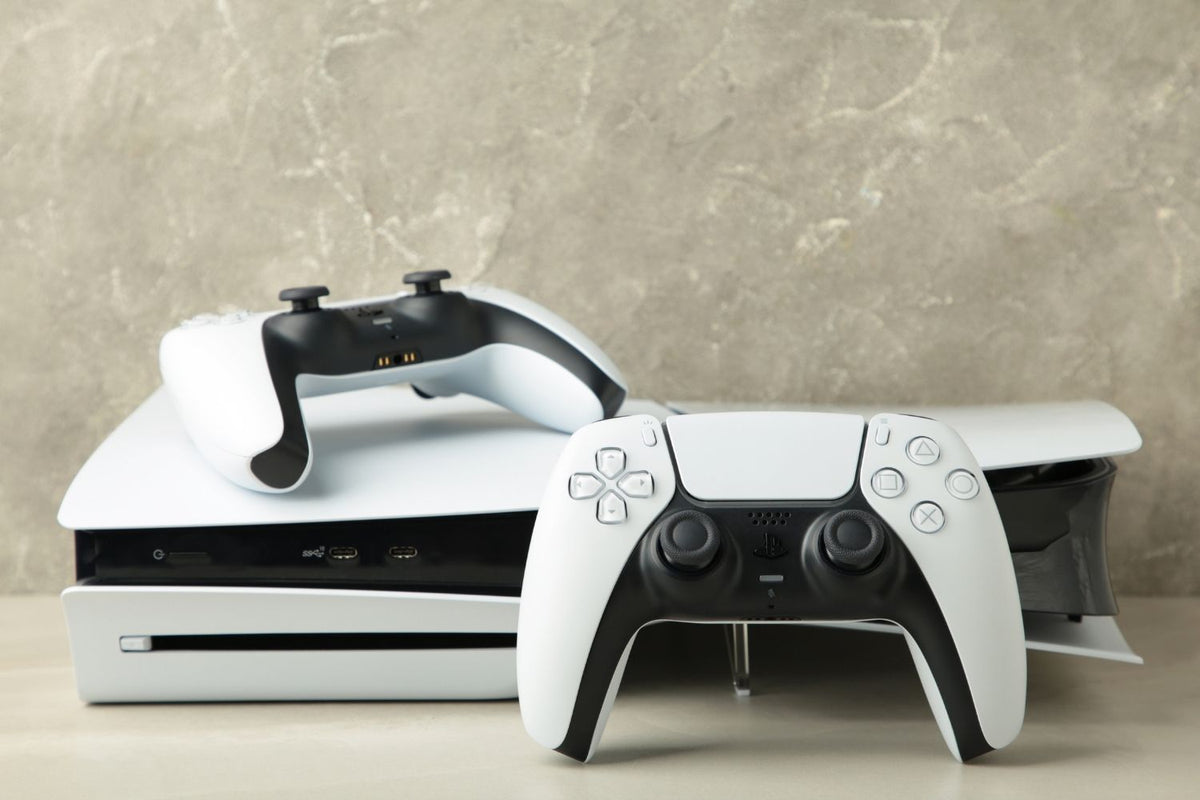
You can connect a keyboard and mouse to a PS5 through USB, a 2.4 GHz USB receiver, or Bluetooth. The console may recognize both devices immediately, but gameplay support still depends on the game. This guide covers each method, useful settings, and common connection problems.
Can You Connect a Keyboard and Mouse to PS5?
Yes. PS5 supports compatible USB and Bluetooth keyboards and mice for text entry, menu control, and games that include native keyboard-and-mouse input. A successful connection does not mean every game will accept the devices. The console can detect a keyboard in the system menu while a game continues to require the DualSense controller.
This setup is most useful when you already play at a desk and want a more PC-like gaming setup. A keyboard makes chat and search fields faster, while a mouse can offer direct pointer control and familiar aiming in supported titles.
Before changing any hardware, check the game developer’s support page or the in-game control menu. Native support is the cleanest option because the game can provide proper prompts, sensitivity controls, and key binding. If a title does not support keyboard and mouse, connecting the devices to PS5 will not automatically add gameplay support.

What Do You Need Before Connecting a Keyboard and Mouse to PS5?
Start with the connection type. A wired device needs a USB cable that fits an available console port. A 2.4 GHz wireless device needs its own USB receiver. A Bluetooth device must have a pairing mode that the PS5 can discover.
For a new purchase, a simple gaming keyboard with a standard USB connection is the easiest option to test. Advanced features that depend on Windows or macOS software may not be available on PS5, so prioritize dependable input, a suitable layout, and an onboard connection mode over desktop-only configuration tools.
Before setup, confirm the following:
- The keyboard and mouse are charged or have fresh batteries.
- The USB cable or receiver is connected securely and is not damaged.
- You have enough free USB ports for both devices or their receivers.
- The devices do not require a computer-only driver for basic input.
- The game you plan to play lists native keyboard-and-mouse support.
Keep the DualSense controller nearby during setup. Some screens, prompts, and games may still require it even after the keyboard and mouse are connected.
How Do You Connect a Wired Keyboard and Mouse to PS5?
USB Connection
A wired setup is the quickest way to test compatibility because it removes batteries, pairing mode, and wireless interference from the process.
- Turn on the PS5 and sign in with the DualSense controller.
- Plug the keyboard into an available USB port on the console.
- Plug the mouse into a second USB port.
- Wait for the PS5 to recognize the devices, then test the arrow keys, Enter key, typing, and pointer movement in a system screen.
- Open a supported game and select keyboard and mouse as the input method if the game offers that option.
Most basic USB devices require no extra installation. If one device is not detected, move it to another port and reconnect it directly to the console. Avoid troubleshooting through an unpowered hub first, because the hub can introduce a power or detection problem of its own.
How Do You Connect a Wireless Keyboard and Mouse to PS5?
Wireless does not describe one connection method. A keyboard or mouse may use a dedicated USB receiver, Bluetooth, or both. Follow the method built into your device rather than trying to pair a receiver-based product through the Bluetooth menu.
USB Receiver
- Insert the keyboard or mouse receiver into an available USB port on the PS5.
- Turn on the device and select its 2.4 GHz or receiver mode if it has a mode switch.
- Wait for automatic detection, then test the device in the PS5 menu and a supported game.
A wireless gaming mouse may include high polling rates, custom buttons, or desktop software, but PS5 may use only the functions it recognizes. Confirm basic movement and clicking first; treat advanced profiles, lighting, and remapping as device-specific extras rather than guaranteed console features.
Bluetooth Pairing
- Put the keyboard or mouse into Bluetooth pairing mode according to its manual.
- On PS5, go to Settings > Accessories > General > Bluetooth Accessories.
- Wait for the device to appear under Accessories Found, then select it.
- Complete any on-screen confirmation. A keyboard may ask you to enter a passkey and press Enter.
- Check that the device appears under Registered Accessories and shows as connected.
A paired Bluetooth device should reconnect when both the device and PS5 are turned on. If it remains listed but does not reconnect, open Registered Accessories, select the device, and choose Connect.

How Do You Adjust Keyboard and Mouse Settings on PS5?
Go to Settings > Accessories > Other Accessories. For a keyboard, PS5 lets you choose the keyboard language and adjust Key Repeat (Delay) and Key Repeat (Rate). The delay controls how long you hold a key before it repeats; the rate controls how quickly it repeats afterward.
For a mouse, you can choose left-handed or right-handed button orientation and change pointer speed. These are system settings, not full gaming-mouse controls. A supported game may add its own sensitivity, key binding, aim, and input-device options, so adjust the game after confirming that the system detects both devices.
Use moderate settings first. Very fast pointer speed can make menus harder to control, and a very short key-repeat delay can create accidental repeated characters in chat. Make one change at a time so it is easy to identify which setting improves the experience.
Why Is Your Keyboard or Mouse Not Working on PS5?
No System Detection
Reconnect the device, try another console port, charge it, and restart both the peripheral and PS5. For Bluetooth, return the device to pairing mode and remove an old pairing before registering it again. Test the same keyboard or mouse on a computer to rule out a faulty cable, receiver, switch, or battery.
Menu Works but the Game Does Not
This usually means the console recognizes the hardware but the game does not support that input method. Check the game’s official documentation and its control settings. Some titles support a keyboard only for chat, while others support both devices for gameplay. A device appearing in PS5 settings cannot override the game developer’s input rules.
Lag or Unstable Wireless Input
Move the receiver closer, reduce nearby wireless interference, recharge the device, or compare the practical trade-offs of a wireless vs wired gaming mouse. If stability matters more than cable-free use, a direct wired connection is also a useful diagnostic test.
Unsupported Features
Macros, custom buttons, RGB controls, and high polling modes may depend on desktop software. An onboard profile can help, but not every stored function will work on PS5. Test with standard keys and primary mouse buttons first.
Third-Party Adapters
Controller-emulating adapters are not native support. They can add delay, fail after updates, or conflict with game rules. For online play, use native support and check the publisher’s policy before considering one.

Which PS5 Games Support a Keyboard and Mouse?
Support changes by title, platform version, and sometimes by mode. Games commonly associated with native keyboard-and-mouse support on PlayStation include Fortnite, Final Fantasy XIV, Minecraft, Call of Duty titles, and some strategy or simulation games. However, a list from another site can become outdated or mix PS4 and PS5 versions.
The reliable check is the developer’s current support page or the game’s own settings. Look for an input-device option, keyboard bindings, and mouse sensitivity controls. If the game shows only controller mappings after the system recognizes your devices, keep the DualSense available and verify support before troubleshooting the hardware further.
FAQs
Can you play with a mouse and keyboard on a PS5?
Yes, but only games with native keyboard-and-mouse support accept them for gameplay. The PS5 can also use compatible devices for typing and some menu tasks. Console recognition alone does not mean every game will support both devices.
Why can’t I use my keyboard and mouse on PS5?
The devices may have low power, an unsupported connection, a faulty USB port, or console compatibility limits. If they work in PS5 menus but not in a game, the game probably lacks native support or requires you to select that input method.
Where do you plug a keyboard and mouse into PS5?
Plug each USB cable or wireless receiver into an available USB port on the PS5. If a device is not detected, try another port and connect it directly instead of using a hub. Bluetooth devices are paired through the Accessories settings.
Which PS5 games support keyboard and mouse controls?
Support is available in selected titles, including Fortnite, Final Fantasy XIV, Minecraft, and some Call of Duty games. Compatibility can change by version or mode, so confirm it through the developer’s current support page or in-game controls.
Which keyboard supports PS5?
Many standard USB, receiver-based, and Bluetooth keyboards work, but Sony does not guarantee every model. When considering an Angry Miao keyboard or another gaming board, verify the exact model and expect PC-only software features to be limited.
Conclusion
Connect a compatible keyboard and mouse by USB, receiver, or Bluetooth, then adjust them under Other Accessories. Test both in the PS5 menu and the game itself, because console detection does not guarantee gameplay support. Keep the DualSense nearby for unsupported screens or titles.

WRITTEN BY
Angry Miao
Gaming Mouse Specialist • Angry Miao Editorial Team
-
-
-
-
More articlesShare:
7 Best Budget Gaming Mouse in 2026 by Price and Use
How to Connect a Keyboard and Mouse to Xbox: 2 Easy Ways