
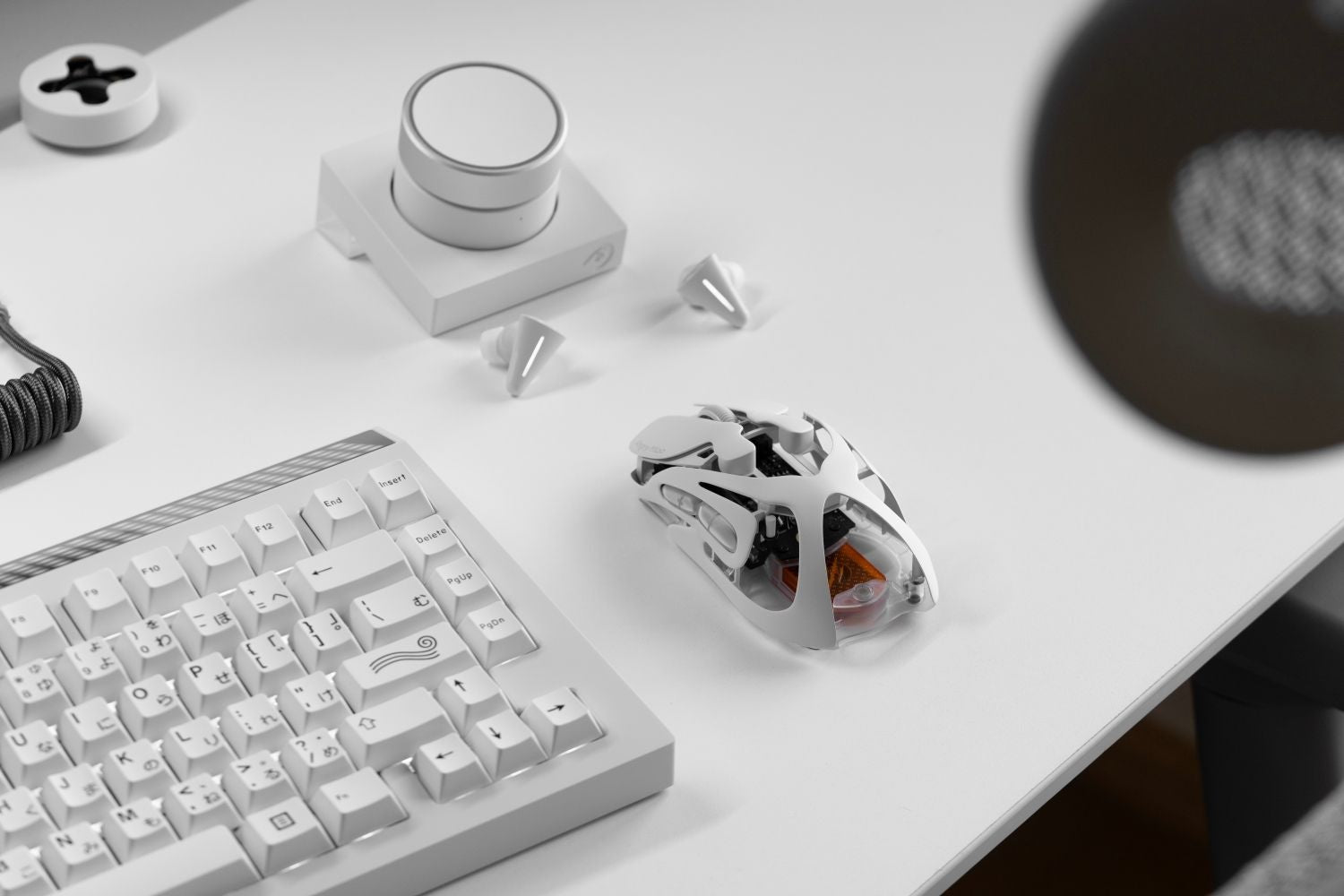
Mouse lag isn't one problem — it's a symptom. The cursor dragging behind your hand, stuttering across the screen, or dropping inputs mid-game can come from a dirty sensor, a dongle sitting next to a USB 3.0 drive, a Windows power setting quietly throttling your USB port, or a polling rate your CPU can't sustain. The fix depends on which one. Work through this guide in order — most lag disappears within the first three steps.
Common Quick Fixes
Clean the sensor. Dust and skin oils on the lens cause skipping that looks identical to input lag. Unplug the mouse, wipe the sensor with a dry cotton swab. No liquids.
Replace or charge the battery. Low battery is one of the most common causes of wireless stutter. Swap batteries or charge fully before troubleshooting anything else.
Restart your computer. Clears stuck USB and Bluetooth states, resets driver processes, and eliminates intermittent background conflicts.
Unplug and replug the mouse or receiver. Remove the cable or dongle, wait five seconds, and plug it back in firmly. Resets the connection without a full restart.
Switch to a rear USB port. Front panel ports are lower quality and more susceptible to interference. Plug directly into a rear motherboard port.
Test on a different surface. Try the mouse on a plain white sheet of paper. If stuttering stops, your desk or mousepad is the issue.
Symptom Quick Reference
| Symptom | Most likely cause | How to fix |
|---|---|---|
| Freezes every few seconds (rhythmic) | Power saving / wireless signal | Device Manager → Bluetooth adapter → Properties → Power Management → uncheck "Allow the computer to turn off this device." |
| Lags everywhere — desktop and games | USB port or system load | Unplug from the hub, plug directly into a rear motherboard USB port |
| Lags only on Bluetooth | BT power saving, 125Hz polling limit | Disable Bluetooth adapter power saving in Device Manager (same steps as above) |
| Lags only on the 2.4GHz dongle | USB 3.0 interference | Use a USB extension cable to move the dongle onto the desk, away from USB 3.0 devices |
| Lags only when wired | Bad port, hub, or cable | Bypass hub; plug directly into the rear motherboard port; wiggle-test the cable |
| Skips or jumps randomly | Dirty sensor or wrong surface | Unplug the mouse, wipe the sensor lens with a dry cotton swab, and test on plain white paper |
| Lag started after changing the settings | Polling rate too high | Open mouse software → lower polling rate to 1000Hz |
Fix 2.4GHz Wireless Mouse Lag
USB 3.0 Interference
USB 3.0 devices emit RF noise that overlaps with the 2.4GHz band your dongle uses. To test, unplug nearby USB 3.0 devices for one minute. If the lag improves, interference is the cause.
Fix: Plug the dongle into a USB 2.0 port. If unavailable, use a USB extension cable to move the dongle away from USB 3.0 devices.
Dongle Placement
A dongle buried behind the PC — surrounded by cables and the metal chassis — produces a weaker, less stable signal.
Fix: Use a short USB extension cable to place the dongle on your desk, 30–50cm from the mouse with a clear line of sight. Plug the extension into a rear motherboard port.
Remove Hubs and Adapters
USB hubs and docking stations add latency and electrical noise, especially in cheaper models.
Fix: Plug the dongle directly into the PC for testing. If lag disappears, the hub was the cause. If you must use one, keep the dongle on an extension cable away from the hub body.
If lag persists across all these fixes, the wireless implementation of the mouse itself may be the limiting factor. The AM Infinity mouse uses a dedicated 2.4GHz connection with frequency-hopping designed for stable performance in congested RF environments.

Fix Bluetooth Mouse Lag
Disable Bluetooth Power Saving
Windows puts the Bluetooth radio to sleep between movements by default — this causes the rhythmic freeze-every-few-seconds pattern.
- Open Device Manager → Bluetooth
- Right-click your Bluetooth adapter → Properties
- Go to Power Management
- Uncheck Allow the computer to turn off this device to save power
- Click OK
If you use a USB Bluetooth adapter, also disable USB Selective Suspend (see Windows Settings below).
Re-pair the Mouse
A corrupted pairing state causes lag that clears after a clean reconnect.
Fix: Go to Settings → Bluetooth & devices, remove the mouse, restart your PC, then pair it again from scratch.
Update Bluetooth Drivers
Outdated Bluetooth drivers cause lag that Windows Update alone may not fix.
Fix: Download the latest Bluetooth driver from your laptop or motherboard manufacturer's support page directly. Install, restart, then re-pair the mouse.
Fix Wired Mouse Lag
Port and Cable Issues
Hubs, docks, and front panel ports are common culprits for wired mouse lag.
Fix: Unplug from any hub or passthrough and connect directly into a rear motherboard port. If lag persists, do a wiggle test. Spikes during the wiggle mean the cable is damaged. And test a second mouse to confirm the fault is in the mouse and not the port. If you need to replace your mouse, you can also try a wireless mouse that supports both wired and wireless modes simultaneously.

System Load and Polling Rate
High polling rates (4000Hz / 8000Hz) can overload the CPU during gaming, causing stutter that looks like a connection problem.
Fix: Open your mouse software and drop the polling rate to 1000Hz. If stutter disappears, the polling rate was the cause. Also open Task Manager (Ctrl + Shift + Esc) and check CPU usage — anything consistently above 90% during gameplay will produce mouse lag system-wide.
Windows Settings That Cause Mouse Lag
USB Selective Suspend
Windows cuts power to idle USB ports by default, causing a stutter when the port wakes up on mouse movement.
Fix:
- Press Win + R, type powercfg.cpl, press Enter
- Click Change plan settings → Change advanced power settings
- Expand USB settings → USB selective suspend setting
- Set to Disabled
- Click Apply → OK
USB Root Hub Power Management
A separate setting in Device Manager can throttle USB devices even when Selective Suspend is off.
Fix:
- Open Device Manager → Universal Serial Bus controllers
- Right-click each USB Root Hub → Properties
- Go to Power Management
- Uncheck Allow the computer to turn off this device to save power
- Repeat for every USB Root Hub listed
Enhance Pointer Precision
This setting makes the cursor travel different distances for the same physical movement depending on speed, which many users perceive as lag.
Fix:
- Press Win + I → Bluetooth & devices → Mouse → Additional mouse settings
- Open the Pointer Options tab
- Uncheck Enhance pointer precision
- Click Apply
How to Prevent Mouse Lag in the Future
Dongle placement. Keep the 2.4GHz receiver on your desk via an extension cable permanently. Position it close to the mouse with a clear line of sight.
USB 3.0 separation. When adding external drives or hubs, keep them on the opposite side of the PC from the dongle. If they must be close, use a USB 2.0 port for the receiver.
Power settings. Disable USB Selective Suspend and USB Root Hub power management once and leave them off. They serve no purpose on a desktop setup and cause lag that's easy to misdiagnose.
Polling rate. Stick to 1000Hz unless you've confirmed your system handles higher rates without stutter. Raise gradually — 1000Hz → 2000Hz → 4000Hz — testing at each step.
Mousepad. Replace when the surface shows visible wear. Tracking noise from a degraded pad is a recurring source of lag that's easy to overlook.
Mouse hardware. If you're setting up a new wireless mouse, choosing one with a stable 2.4GHz implementation reduces the chance of recurring interference issues.
Cables. Avoid sharp bends at USB connectors and where the cable enters the mouse. Damage at these points is gradual and produces a stutter that worsens over time.
If the lag follows your mouse to a second computer after all these fixes, the hardware itself has failed. A sensor that skips consistently across multiple surfaces and USB ports is at the end of its life.
FAQ
Why does my mouse freeze every few seconds?
Rhythmic freezing is almost always a power-saving issue. For Bluetooth, disable the Bluetooth adapter's power management in Device Manager. For 2.4GHz, check whether USB Selective Suspend is putting the port to sleep.
Can USB 3.0 cause wireless mouse lag?
Yes — USB 3.0 devices generate RF noise that overlaps with the 2.4GHz frequency your dongle uses. Unplug the nearby USB 3.0 storage to test. If lag improves, move the dongle to a USB extension cable and a USB 2.0 port.
Why does my Bluetooth mouse lag, but my 2.4GHz mouse doesn't?
Standard Bluetooth polls at around 125Hz. A dedicated 2.4GHz connection polls at 1000Hz or more. For gaming, 2.4GHz is the better choice.
Does high DPI cause mouse lag?
No. DPI sets cursor travel distance per inch, not reporting frequency. What causes lag is a high polling rate overloading the CPU. Lower the polling rate before adjusting the DPI.
My mouse lags on one computer but not another. What does that mean?
If lag follows the mouse to a second computer, the fault is in the mouse — sensor wear, cable damage, or a failing wireless module. If the mouse runs fine elsewhere, the issue is with your PC's USB ports, drivers, or power settings.
Share:
Best Custom Mechanical Keyboards of 2026
The Best Wireless Gaming Mouse of 2026: Professional Review