
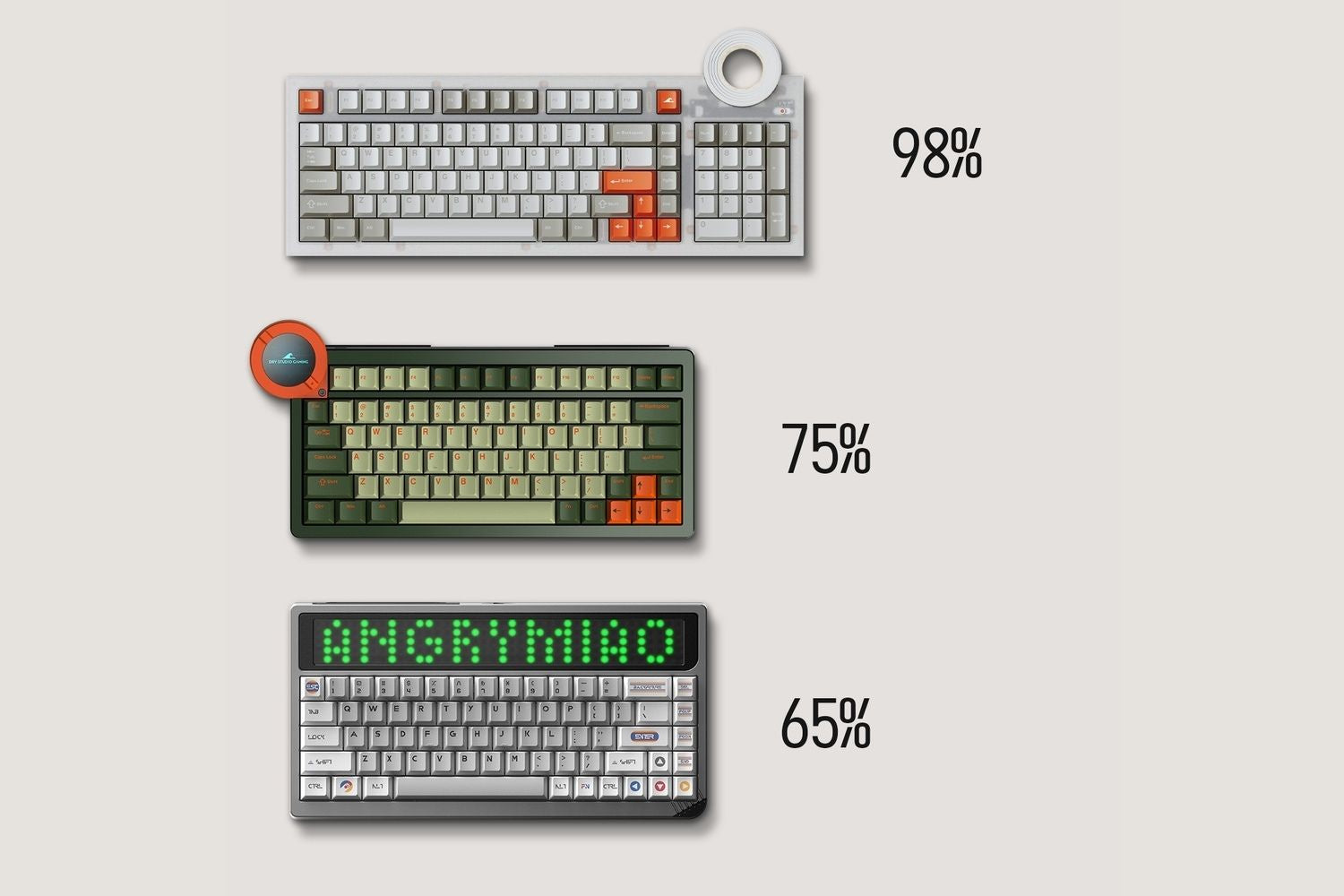
Keyboards come in a range of sizes — from full-size 100% boards with every key included, to compact 60% layouts that strip things back to the essentials. Bigger boards keep more keys within direct reach; smaller ones free up desk space. Which size suits you depends on your use cases. Read on for a full breakdown of every layout and how to match one to your workflow.
What Are the Different Parts of a Keyboard?
Before comparing sizes, it helps to know what each section does:

Alphanumeric block: Letters, numbers, and punctuation — the core of every keyboard, present on all layouts.
Modifier keys: Shift, Ctrl, Alt, Win/Cmd. Used for shortcuts. Present on all layouts.
Function row (F1–F12): The top row. Used for software shortcuts, media controls, and game bindings. Some workflows rely on these constantly; others barely touch them.
Arrow keys: Navigation and text editing. Removed on 60% and smaller.
Navigation cluster: Insert, Delete, Home, End, Page Up, Page Down. Used for document editing. Partial on 65% and 75%, full on TKL and 100%.
Numpad: Number block on the far right. Useful for data entry. Removed on TKL and all compact layouts.
What Do Keyboard Size Percentages Mean?
Keyboard sizes are described as percentages relative to a full-size board. A 100% keyboard includes every key — alphanumeric block, function row, navigation cluster, and numpad. Every smaller layout removes something, and the percentage gives a rough indication of how much of the full layout remains.
The numbers aren't exact — a 65% keyboard doesn't have exactly 65% of a full board's keys. They're categories that have become standard shorthand. What matters is understanding what each size keeps and what it removes.
What Are the Main Keyboard Sizes?
100% Keyboard
The most complete layout — every key in one board, including a full numpad. Ideal for data entry, spreadsheets, or anyone who prefers direct access to every key. A 100% keyboard covers all functions, making it convenient to operate, but it takes up more desktop space.
Best for: Data entry, accounting, and workflows that rely heavily on numpad input.

TKL — Tenkeyless (~87%)
Removes only the numpad, keeps everything else intact — function row, navigation cluster, and full alphanumeric block. The transition from full-size requires almost no adjustment. With the numpad gone, the mouse sits closer to the keyboard, which improves arm positioning during long sessions.
Best for: Gamers and general users who want a smaller footprint without giving up function or navigation keys.

75% Keyboard
Keeps the function row and a partial navigation cluster, but compresses everything into a smaller footprint than TKL. Keys sit closer together, so the board takes noticeably less desk space while still giving you direct access to F1–F12 and arrow keys. The tighter spacing takes a short adjustment period if you're coming from a larger board.
Best for: Users who need function keys for coding, software shortcuts, or creative work, but want a smaller board than TKL.

65% Keyboard
Removes the function row and trims the navigation cluster to a few keys — Delete, Page Up, Page Down — while keeping arrow keys. One of the smallest layouts that stays practical without heavy layer use. Popular among gamers since F-keys are rarely needed mid-session, and the smaller footprint gives the mouse more room. For a detailed comparison with 75%, see the 65 vs 75 keyboard guide.
Best for: Gamers, typists, and minimalist setups where desk space matters and function keys aren't needed regularly.

60% Keyboard
Removes the function row, navigation cluster, and arrow keys. Everything else is accessed through layers. The 60% has the largest customisation ecosystem of any compact size — more cases, PCBs, and keycap sets exist for this layout than almost any other. The trade-off is usability: text editing and navigation require remapping or layer combinations.
Best for: Enthusiasts focused on customisation, and experienced users comfortable with layer-based navigation.

40% Keyboard
Removes the number row on top of everything, a 60% already cuts. Nearly all input is handled through layers, including letters that require modifier combinations. The learning curve is steep, and the workflow adjustment is significant — suited to enthusiasts who have fully committed to layer-based input.
Best for: Enthusiasts who have fully rebuilt their typing habits around layered input.
|
100% |
TKL |
75% |
65% |
60% |
40% |
|
|
Alphanumeric block |
✓ |
✓ |
✓ |
✓ |
✓ |
✓ |
|
Number row (1–0) |
✓ |
✓ |
✓ |
✓ |
✓ |
✗ |
|
Function row (F1–F12) |
✓ |
✓ |
✓ |
✗ |
✗ |
✗ |
|
Arrow keys |
✓ |
✓ |
✓ |
✓ |
✗ |
✗ |
|
Navigation keys (Del, PgUp, PgDn) |
✓ |
✓ |
Partial |
Partial |
✗ |
✗ |
|
Numpad |
✓ |
✗ |
✗ |
✗ |
✗ |
✗ |
|
Approx. key count |
~104 |
~87 |
~84 |
~68 |
~61 |
~40 |
What Is the Difference Between Size and Layout?
Size refers to how many keys a keyboard has. Layout refers to how those keys are physically arranged — and the two don't always match.
Two keyboards can share the same size category but have different layouts. Common layout variations include:
- ANSI vs ISO: ANSI is the standard US layout with a wide Enter key; ISO is common in European markets with a taller Enter key and an extra key near the left Shift
- Split spacebar: The spacebar is divided into two or more separate keys, each remappable independently
- Alice layout: An ergonomic variation where the alphanumeric block is split and angled outward to reduce wrist strain — available in multiple size categories
- Ortholinear: Keys are arranged in a strict grid rather than the staggered rows of a standard keyboard
A standard layout follows key sizing and positioning conventions that most keycap sets are designed around. Non-standard layouts may offer ergonomic or aesthetic advantages, but can limit compatibility with aftermarket keycaps and cases. A mechanical gaming keyboard with a standard layout gives you the widest range of compatible parts and keycap sets.

How to Choose the Right Keyboard Size
For Gaming
65% is the most common choice — everything needed for gaming is present, and the smaller footprint gives the mouse more room. TKL works well for gamers who also do productivity work and need F-keys accessible without layer switching.
For Coding and Working
75% or TKL. Function keys come up constantly in IDE shortcuts, debugging, and creative software like Photoshop or Premiere. A dedicated F-row removes friction that compounds over a full workday.
Typing and Writing
Any size from 65% upward. The alphanumeric block is identical across all layouts — the only question is whether you need arrow keys and function key shortcuts.
For Portability
65% or 60%. Smaller boards travel more easily, but identify which keys your workflow requires before going very compact.
For Custom Builds
60% has the largest parts ecosystem, but 65% is more practical for daily use. If customisation matters — swappable switches, interchangeable keycaps, multiple sizes — Angry Miao's custom keyboard lineup covers a range of layouts with that flexibility built in.
Conclusion
Keyboard size comes down to which keys you actually use on a regular basis. Start there, then choose the smallest layout that includes all of them. That approach avoids both the clutter of a larger board and the frustration of missing keys you need.
For most users new to compact keyboards, TKL or 75% are the most practical starting points. Both keep function keys accessible, require minimal adjustment from full-size, and leave room to move to a smaller layout later if needed.
FAQ
Is a smaller keyboard better for gaming?
Generally, yes, up to a point. Most gamers settle on 65% or TKL — small enough to give the mouse more room, large enough to keep all necessary keys.
Do I need a numpad?
Only if your workflow relies on frequent number entry. Most users don't miss it after switching to a compact layout.
What is the most popular keyboard size?
TKL and 65% among gamers and enthusiasts. Full-size remains most common overall due to office and data entry use.
Can I use a 60% keyboard for gaming?
Yes, but arrow keys and other missing inputs need to be remapped or layered. It works, but requires more setup than a 65% or TKL.
What does "standard layout" mean?
A layout that follows conventional key sizing and spacing, which most keycap sets are designed to fit. Non-standard layouts may limit aftermarket keycap compatibility.

Share:
65 vs 75 Keyboard: Which Layout Is Right for Your Needs?
AM Infinity Mouse — Everything You Need to Know